Paracosm Studio Worldbuilding for writers

From a place to a scene

Build enough of the world to make your next scene better.

For a writer, a setting becomes useful when it gives a character something to want, a constraint to face or a detail a reader can believe. Paracosm Studio connects maps, Wiki canon and Scribe writing so you can develop the world alongside the story.

Alpha v1.0 · Create and edit on desktop · View saved work on mobile

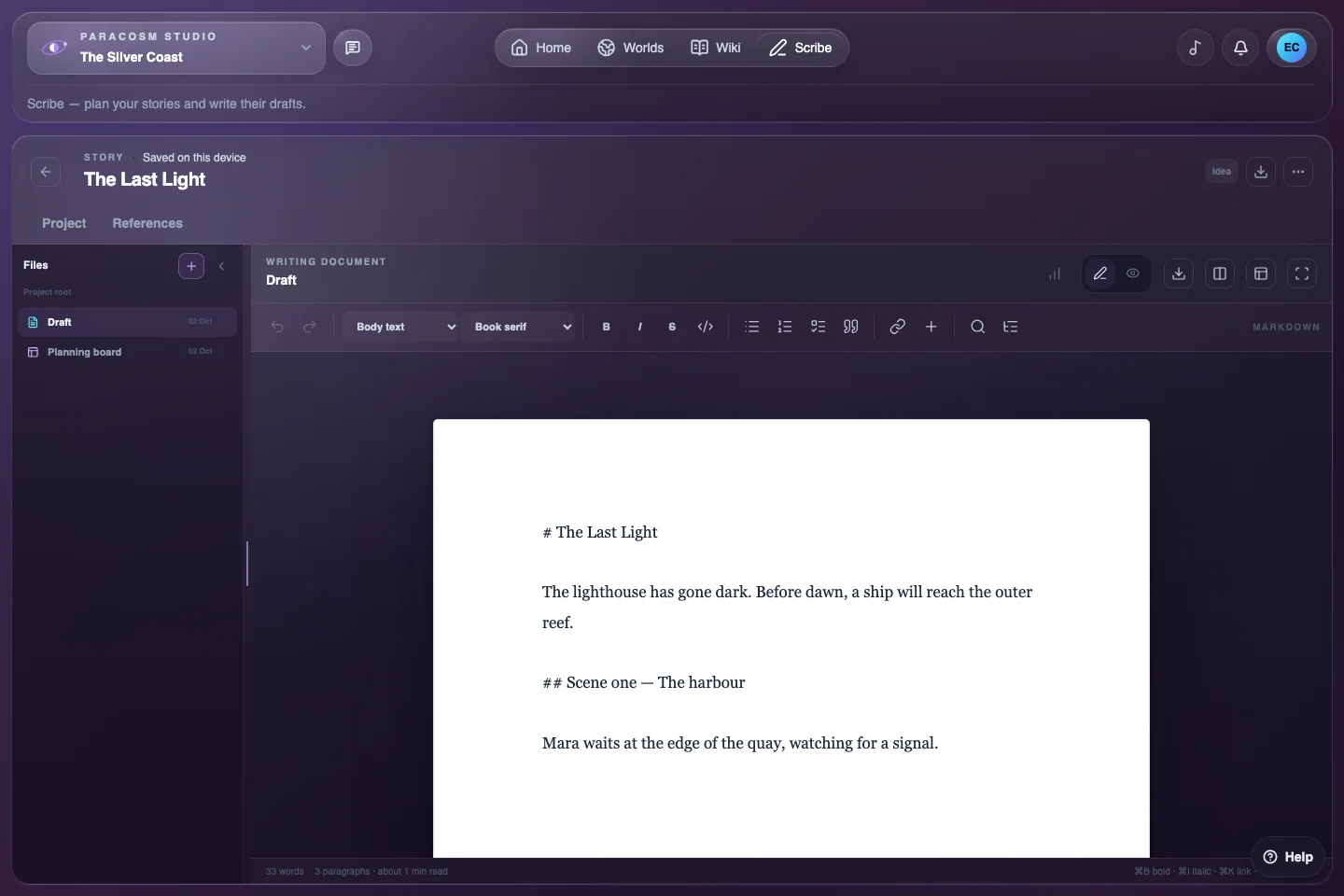
A story document open in Scribe with the project’s writing files alongside the editor.
Scribe keeps narrative documents and planning boards inside the same setting as your canon.

Begin with the scene’s unanswered question

Before detailing an entire continent, identify what the next scene needs. Where must the character go? What makes the journey difficult? Who can deny them access? Build the few setting facts that make those choices convincing.

A generated map can suggest a useful constraint: a mountain pass, an isolated coast or a river crossing. Treat it as an invitation to decide what matters. You can also begin with a blank Paracosm and develop lore before adding a planet.

Turn a location into a source of conflict

Consider a town at the only convenient crossing of a river. Give it a practical function, a group that benefits from it and someone who wants a different arrangement. A toll, a damaged bridge or a disputed boundary can give the setting a direct role in a scene.

In Worlds, develop the place and its context. In the Wiki, record the facts you have chosen: who holds the crossing, what travellers owe and what happened there before. In Scribe, write the moment your character needs to pass. These are decisions you author, rather than a story automatically generated by the map.

Use canon as a reference while drafting

Keep stable facts in the Wiki: place names, character histories and the rules your story depends on. Scribe references and planning boards let you bring that material into a project without copying every page into the draft.

Keep possibilities visibly separate from established facts. An alternative ending can stay in a planning note until you choose it. When a draft changes an important fact, update the Wiki deliberately and check the other scenes that rely on it. References help you navigate; they do not automatically resolve contradictions.

Plan, write and keep a usable copy

Scribe Story projects contain writing documents and freeform planning boards. Arrange a few cards around a character’s goal, an obstacle and a consequence, then return to the prose. Keep the plan small enough that it helps you write rather than becoming a second unfinished project.

Individual writing documents can download as Markdown. Project text exports are readable output, rather than a restorable copy of every board, connector and reference. Check saving and keep milestone exports as your work develops.

Put it into practice

Try a place → lore → story session

  1. Choose one useful place

    Pick a location your character must visit and one geographical constraint that affects the journey.

  2. Write three facts

    In the Wiki, establish who is there, what they need and which rule makes the situation difficult.

  3. Draft the consequence

    Open a Scribe Story document and write a short scene that tests those facts. Revise only what the scene reveals.

Before you begin

Common questions

More detail in the Help Centre and device requirements.

Do I need to build a complete planet before writing?

No. Begin with a blank Paracosm or develop just one useful part of a generated world. The Wiki and Scribe can hold your setting notes and narrative while the rest of the geography remains undecided.

Will changing a Wiki fact automatically rewrite my manuscript?

No. References help connect your material, but ordinary typed prose is not automatically rewritten. Review the affected scenes and update names or facts yourself when canon changes.

Can I read my writing on mobile?

Compact screens provide a view-only reader for saved Worlds, Wiki and Scribe content. Write and edit in a desktop-sized browser, and confirm cloud saving has completed before continuing on another device.

What can I try on the Free plan?

Free gives you room to try a small setting with maps, Wiki pages and Scribe writing, within the displayed plan limits. Paid plans add capacity and premium customisation. Paracosm Studio is Alpha v1.0; check current plans and keep independent copies of important writing.

Start with one idea.

Create your account, then build your first setting on desktop.

Create your Paracosm